What is Enectiva?
Enectiva is an information and management system provided in the form of SaaS (Software as a Service). It enables users to:
- Monitor and process energy meter data or any other data series
- Calculate and analyse energy consumption costs and provide detailed statistics
- Facilitate building management using control units
- Set up automatic notifications for consumption, costs, production or other monitored events
- Create and automate consumption invoices and generate reports and charts
Fundamental orientation
When you log in to Enectiva, the Statistics tab opens by default. If you have created a dashboard with charts, it appears instead.
The following example shows the page displayed after logging in when no dashboard is configured.
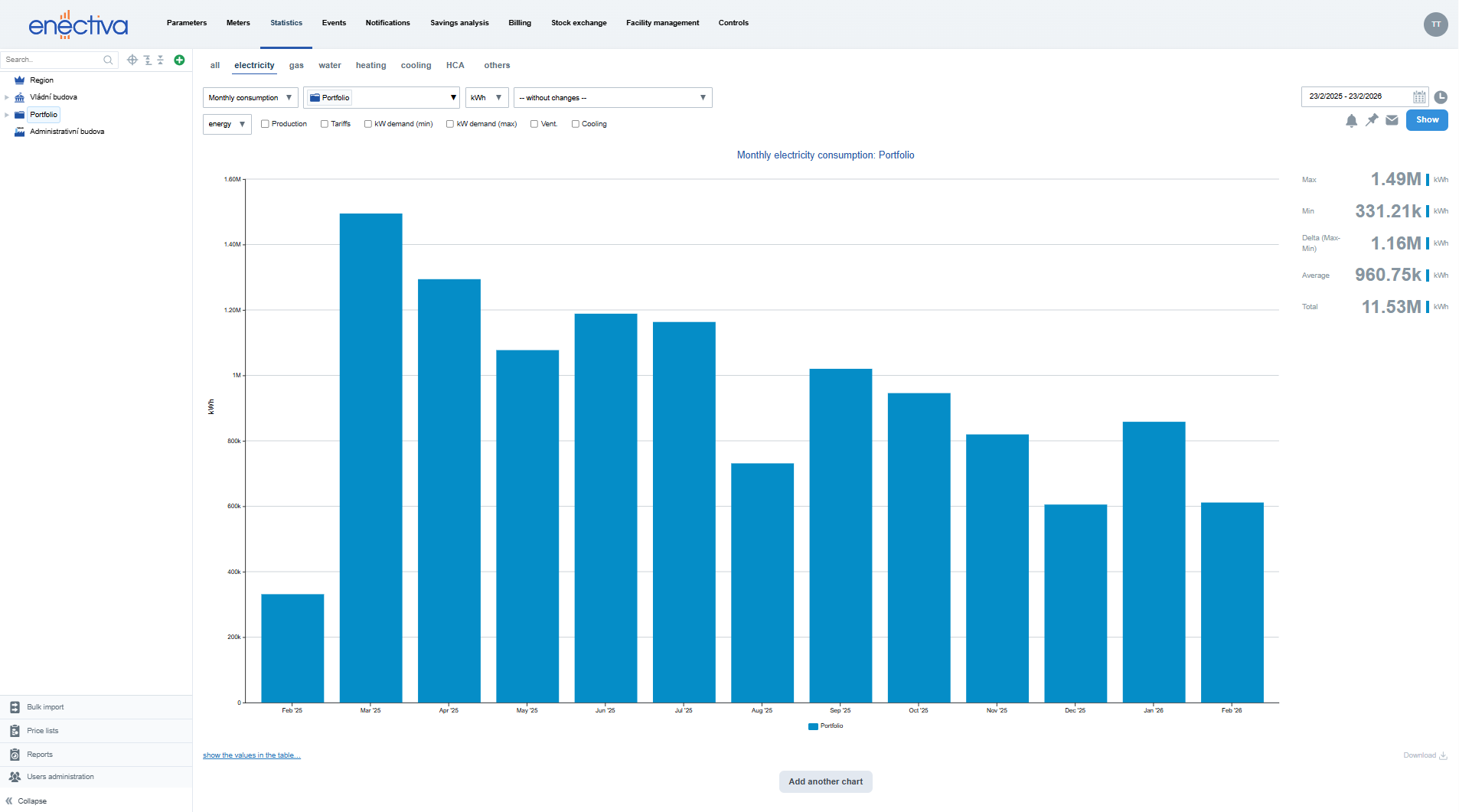
The tabs at the top of the screen allow you to navigate through the application. Each tab has a specific purpose, described in detail in the relevant chapters.
The left panel contains the object tree, which displays the hierarchical structure of objects. You can adjust this structure as needed. In the application, objects are also called entities - both terms are used with the same meaning.
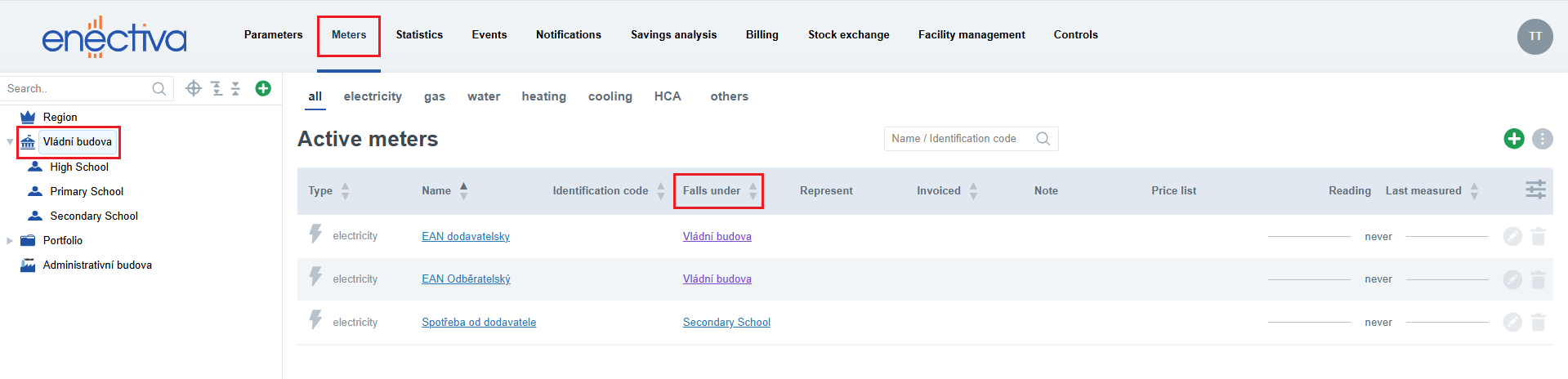
After selecting an object in the left panel, the main content area updates automatically. The displayed data reflect the selected object and all its child objects. For example, when opening the Meters tab, all meters of the selected object and its child objects are displayed.
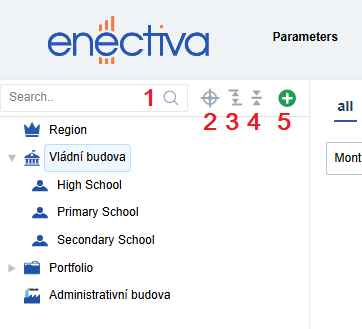
At the top of the left panel (object tree), the following controls are available:
- Search for an object using the magnifying glass icon
- Locate the selected object in the tree
- Expand the entire object tree
- Collapse the tree to the top level (only the top-level objects are displayed)
- Add a new object
Object types
Objects can represent real entities (e.g., buildings or technologies) or serve a structural role within the hierarchy ( e.g., Portfolio). These abstract objects are typically used to categorize buildings by purpose or location.
The system includes 9 basic object types:
- Investor - represents the owner or manager of a larger unit and is usually positioned at the top of the tree
- Portfolio - used to divide buildings into groups based on their location or purpose (for example, Block A and Block B of an industrial complex)
- Complex - represents a group of buildings located in the same area
- Building - represents a physical building (e.g., an apartment building, office building, shopping center, etc.)
- Tenant - represents a unit within a building
- Factory - typically a building used for production
- Economic unit - represents a section of a factory (e.g., a production or assembly hall, or a service area).
- Technology - e.g., public lighting, ventilation, air conditioning
- Switchboard - enables detailed classification of measurements
Default object types can be modified or extended in the application. The names, meaning, and structure of individual object types can be adapted to specific needs. For more information, see the Parameters section.