Areas
On the Areas tab, you can manage floor area data for objects.
Area Types
Total Floor Area (TFA)
The total floor area is defined as the sum of the floor areas between the external walls on all floors of the building, excluding uninhabitable cellars and separate unheated spaces.
Gross Floor Area (GFA)
Gross Floor Area (GFA) is defined as the total floor area including the external walls.
Gross Lettable Area (GLA)
Gross Lettable Area (GLA) is the part of the gross floor area that can be leased to tenants. This means that it does not include common areas such as corridors or technical rooms.
How TFA, GFA and GLA Are Calculated
TFA, GFA, and GLA values are not entered directly in the application. Instead, they are calculated automatically as the sum of individual area types created by the user.
Each area is assigned a type (Leasable, Shared, Other, Extra) when created. The selected type determines whether the area is included in TFA, GFA and GLA.

For example, a shared area is included in GFA and TFA, but not in GLA.
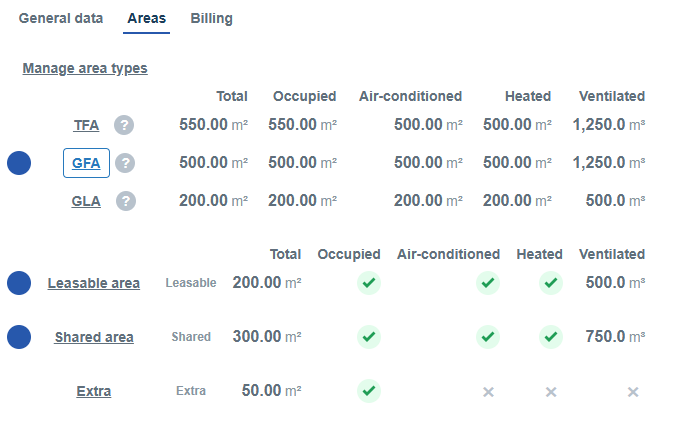
To help you understand how individual areas contribute to TFA, GFA and GLA, the application provides a visual representation of these relationships. When you hover over an area or its value, blue indicators appear:
- For user-defined areas, they show whether the area is included in TFA, GFA and GLA.
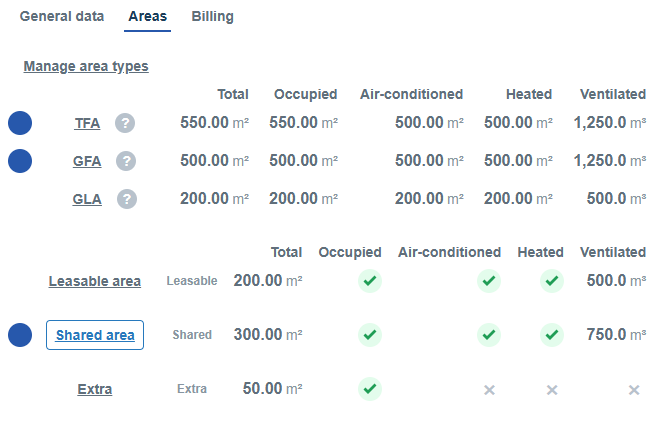
- For TFA, GFA and GLA totals, they show which user-defined areas contribute to the displayed value.
Creating an Area Type
If no area types have been defined for the object yet, or if you need to add another one, click Manage Area Types and then click the + button (Add an area type).
When creating an area type, the following properties must be configured:
- Area name
- Type (Leasable, Shared, Other, Extra)
- Availability for selected object types (i.e. which object types can use this area type)
After clicking Create, the new area type will appear in the Entity area types list.
Custom area types can be used to track additional floor area categories and as reference values in calculations and reports.
Configuring Area Values
On the Areas subtab, you can open an area type assigned to the object and configure its values and parameters. If the object contains child objects (for example, buildings or tenants) from which area values can be calculated automatically, automatic calculation is enabled by default. In this case, click Enter values manually to enable manual value entry.
Once manual mode is enabled, values can be edited. You can switch back to automatic calculation at any time using the Turn auto on button.
Note
If the Enter Values Manually or Turn Auto On button is not available, check whether the corresponding area type is enabled for the current object. You can verify this in the Entity Area Types table. For area types that are not enabled on the object, only automatically calculated values from child objects are displayed and manual editing is not available.
For each area, you can configure:
- Total area (m²)
- Occupied
- Air-conditioned
- Heated
- Ventilation volume (m³)
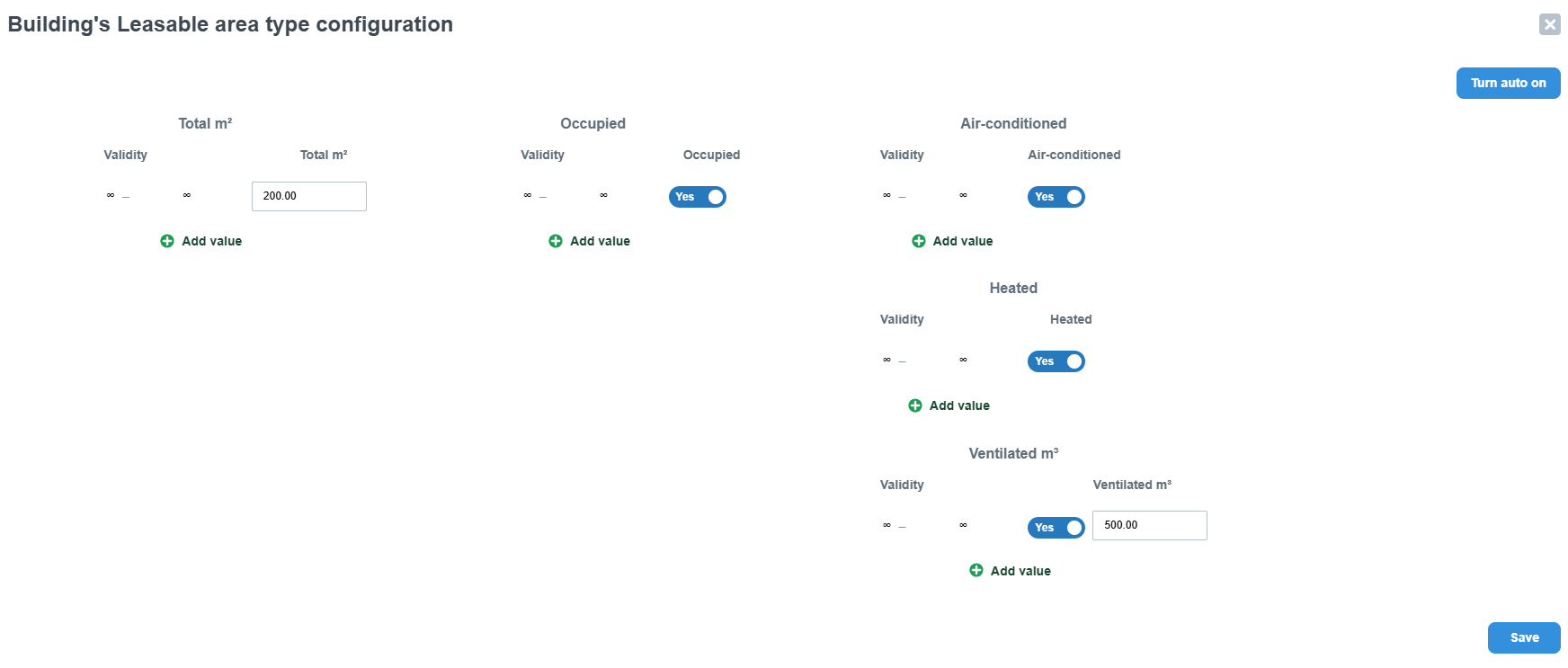
Values can be entered with a validity period using the + Add Value button. Each value can be assigned a validity period (From–To). If no validity period is specified, the ∞ symbol is displayed, indicating that the value remains valid indefinitely.
Example: Custom Area Type
An example of a custom area type is the Energy Reference Area, which represents the heated or air-conditioned area of a building. It can be used as a reference area for additional calculations (for example, consumption per m²).